Shopify
Prerequisites for Configuring Shopify Data Source
Shopify Store Account
Ensure you have an active Shopify store.
Creating a Shopify Application
- Create an account on Shopify and log in
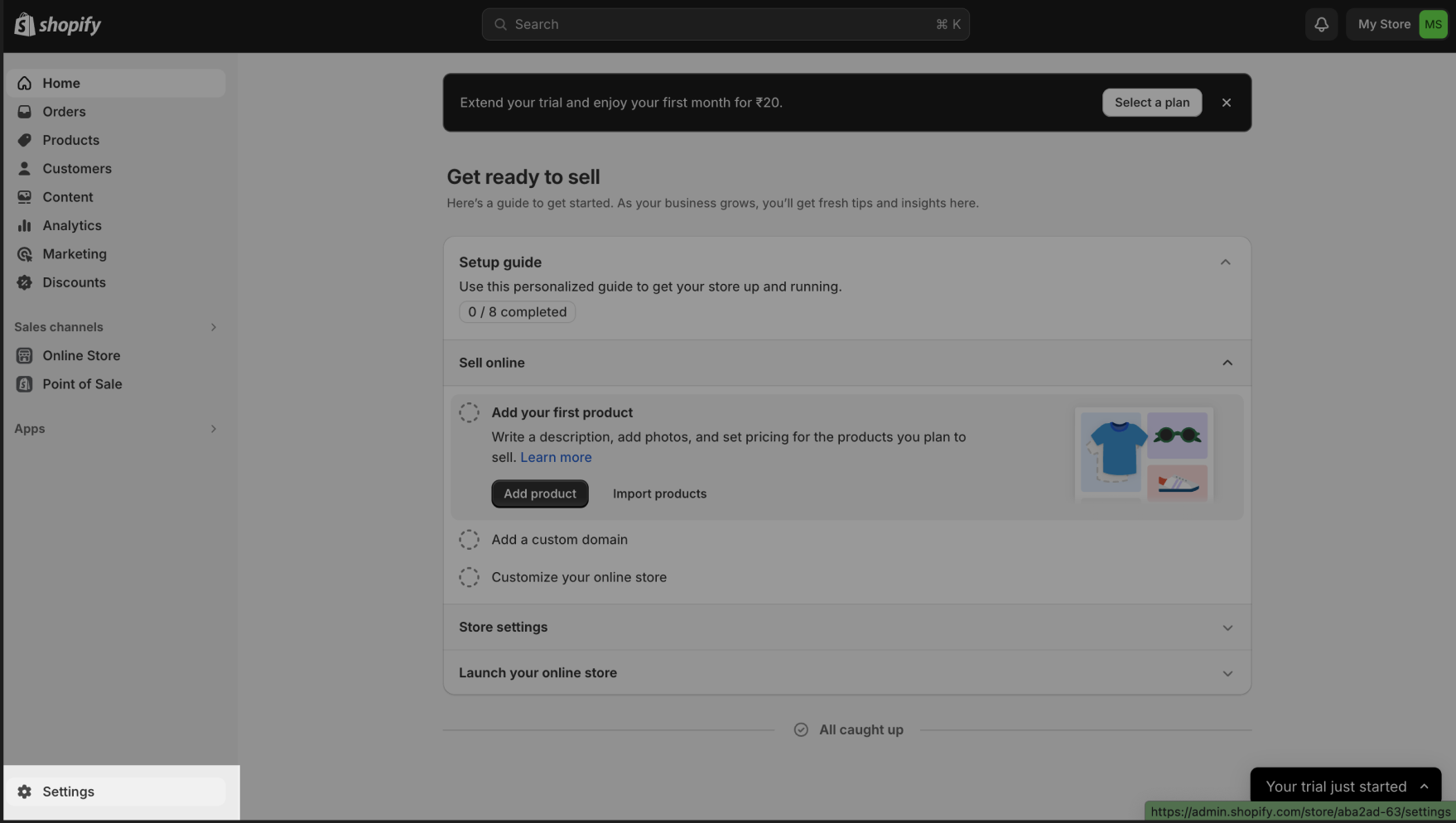
- In Home page click on Settings
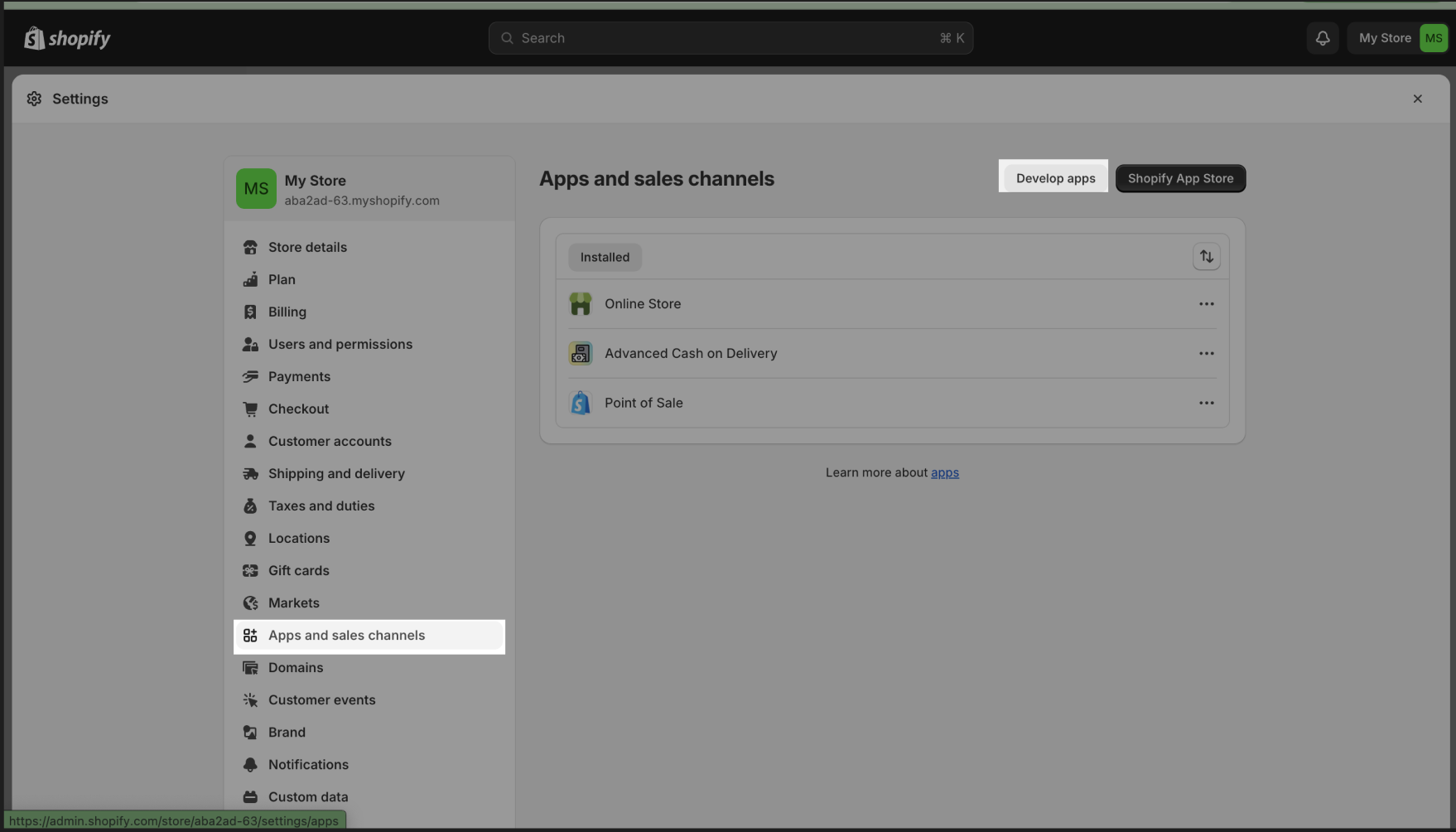
- Move to Apps and Sales Channels section and select Develop Apps and allow access for custom app development.
- An option to Create an app will be enabled.
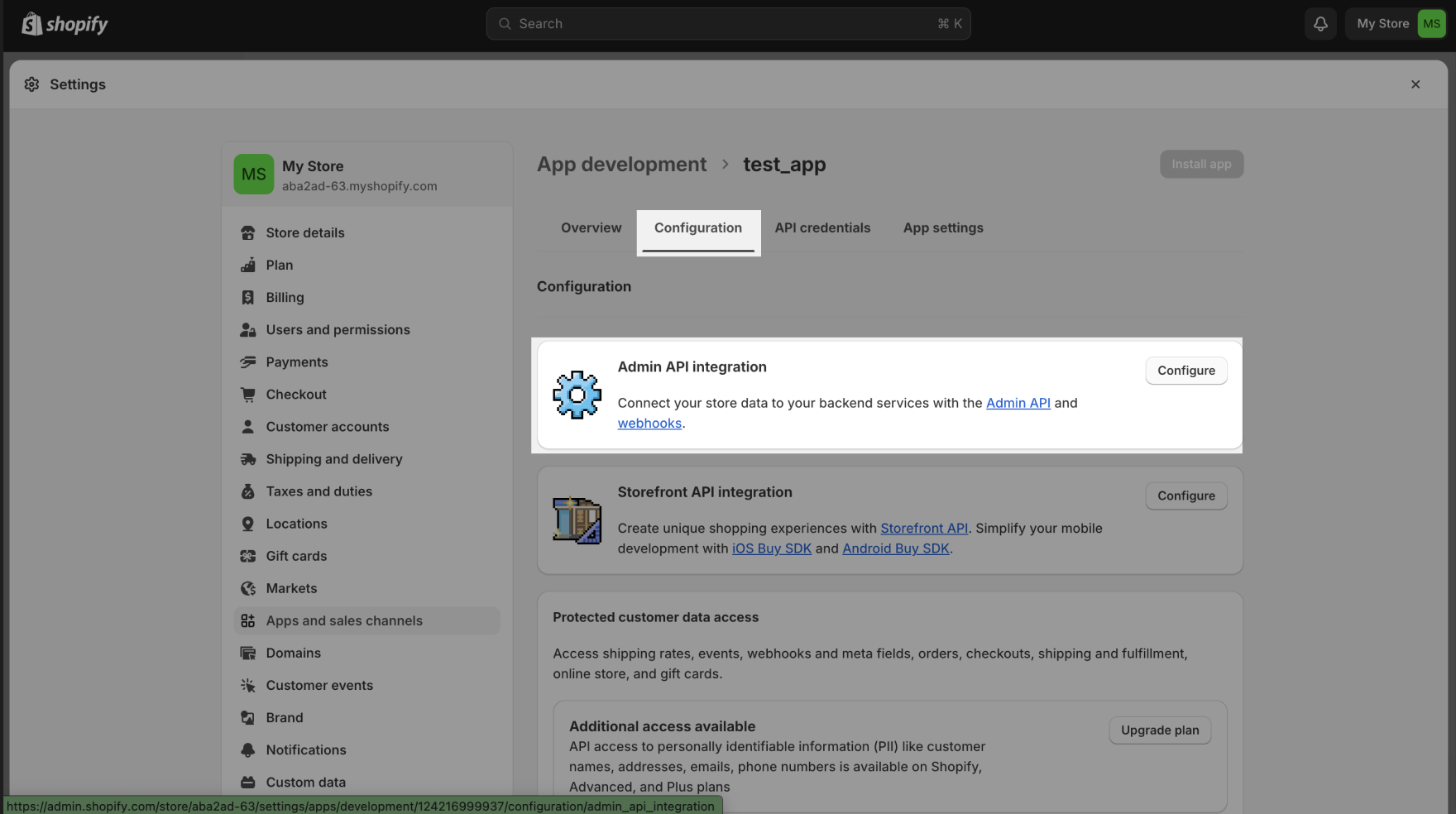
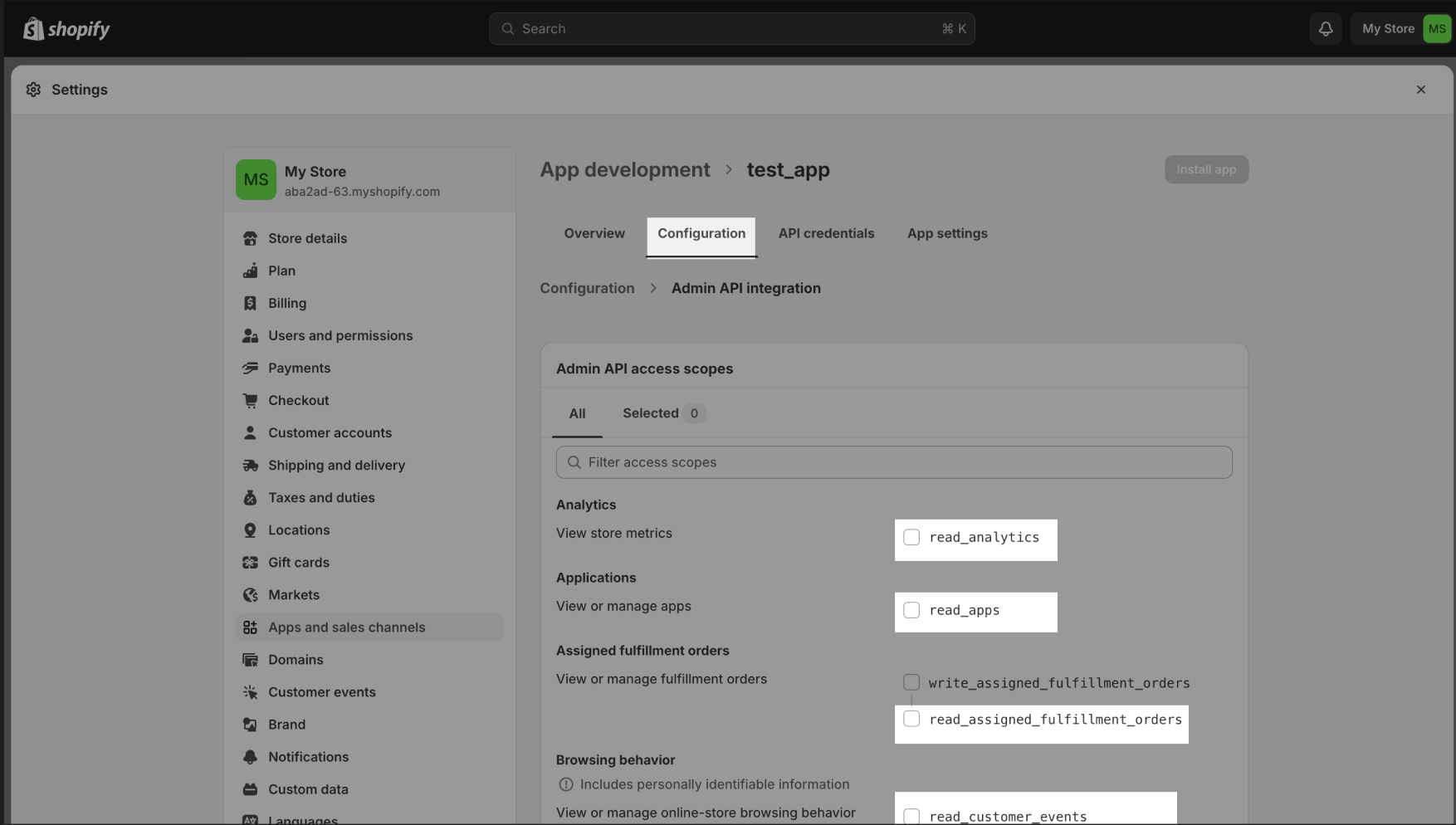
- Enable read_ scopes under Configuration tab and Admin API Integration section.
- Click on Install app to complete the app creation.
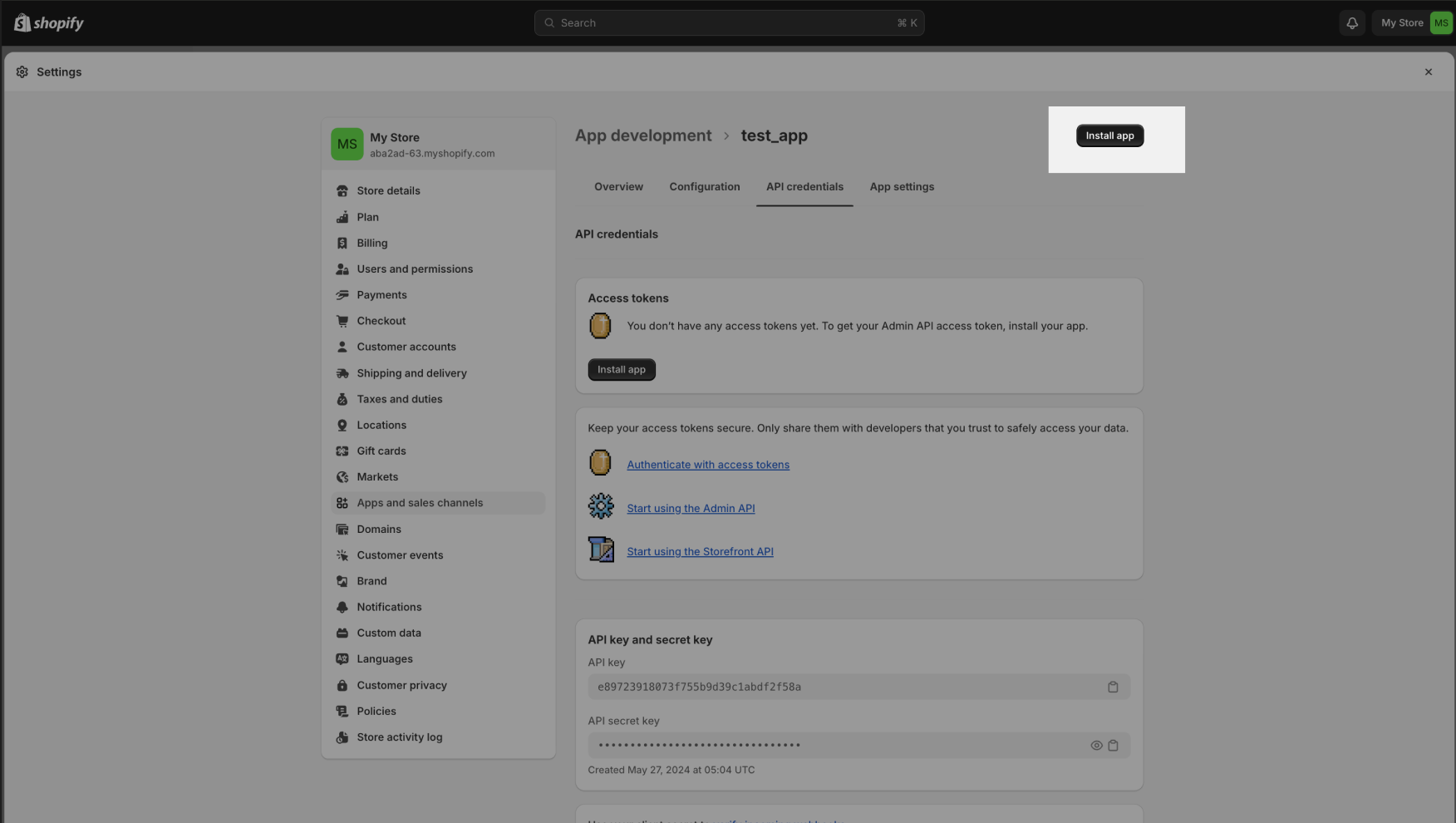
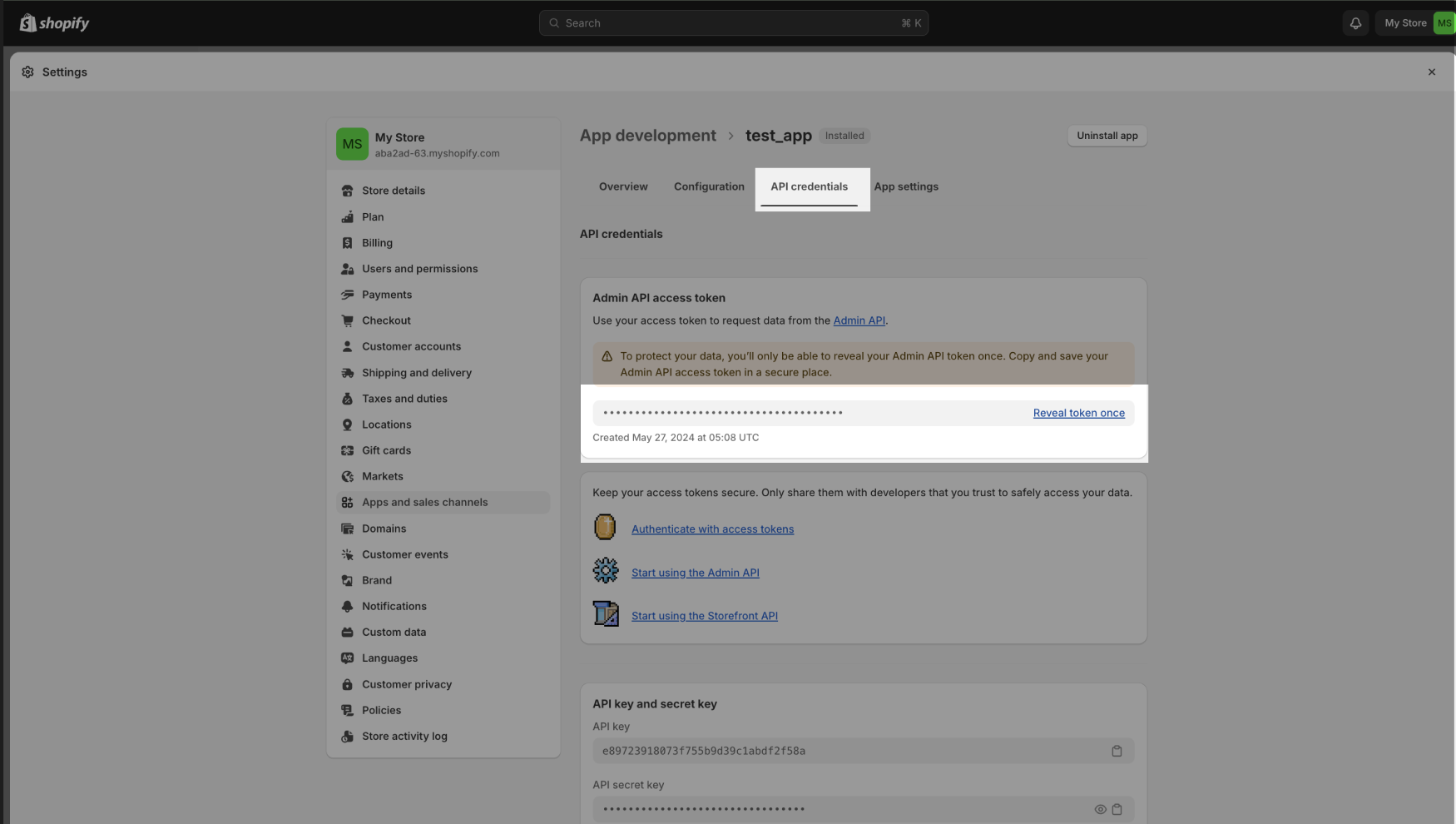
- To retrieve API Password, move to Api Credentials tab and Reveal token once. Copy the API password and paste in the API Password field.
Steps to Obtain OAuth 2.0 Credentials
Create a Shopify App
- Log in to your Shopify Partner account
- Navigate to Apps in the Partner Dashboard
- Click Create App and provide a name for the app
- Select the development store where the app will be installed
Generate Client ID and Client Secret
- Go to the App Credentials section of your newly created app
- Copy the API Key (Client ID) and API Secret Key (Client Secret) from this section
Configure App Permissions
In the Scopes section, specify the permissions your app needs, such as:
- read_products
- write_orders
- read_customers
Save the changes.
Redirect URL Configuration
Add the Redirect URL (e.g., the URL where your connector expects the access token) in the app settings.
Generate Authorization URL
Construct the authorization URL in the following format:
https://{shop-name}.myshopify.com/admin/oauth/authorize?client_id={API_KEY}&scope={SCOPES}&redirect_uri={REDIRECT_URL}
Replace placeholders with your Client ID, Scopes, and Redirect URL.
Authorize the App
- Open the authorization URL in a browser
- Log in with your store credentials and approve the app
- Shopify will redirect you to the Redirect URL with a temporary authorization code
Exchange Code for Access Token
Make a POST request to:
https://{shop-name}.myshopify.com/admin/oauth/access_token
Include these parameters in the request body:
- client_id: Your API Key
- client_secret: Your API Secret Key
- code: The authorization code from the previous step
Retrieve Access Token
Shopify will return a JSON response:
{
  "access_token": "shpat_abc123exampletoken",
  "scope": "read_products,write_orders"
}
Steps to Configure
- Select the Source Type as Shopify
- Shopify Store - Enter your store name from the URL (e.g., 'NAME' from https://NAME.myshopify.com)
- Choose the Authentication Method:
- API Password:
- Paste the API Password obtained earlierAPI Password Configuration
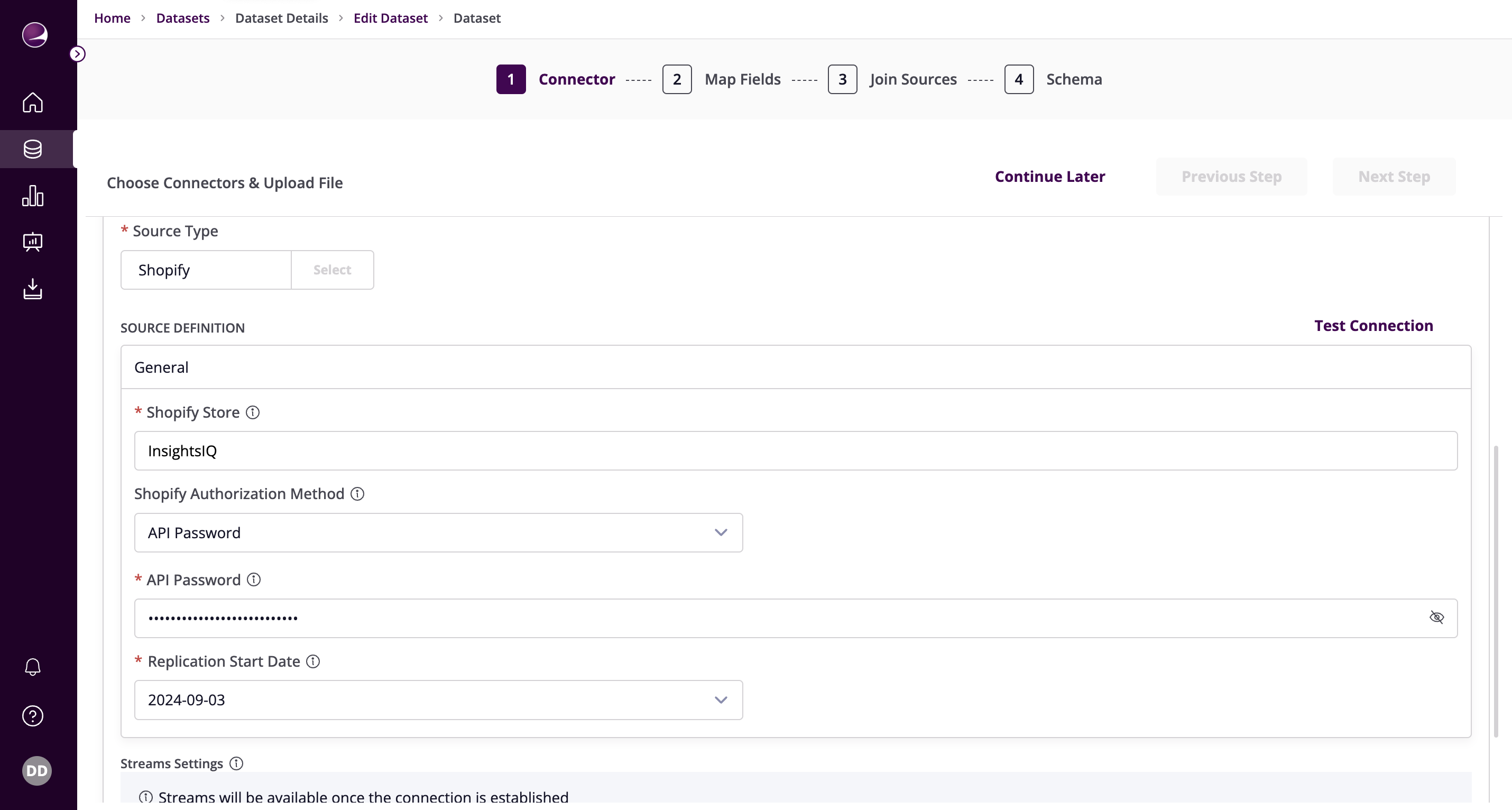
- Paste the API Password obtained earlier
- OAuth2.0:
- Paste the Client ID, Client Secret, and Access TokenOAuth Configuration
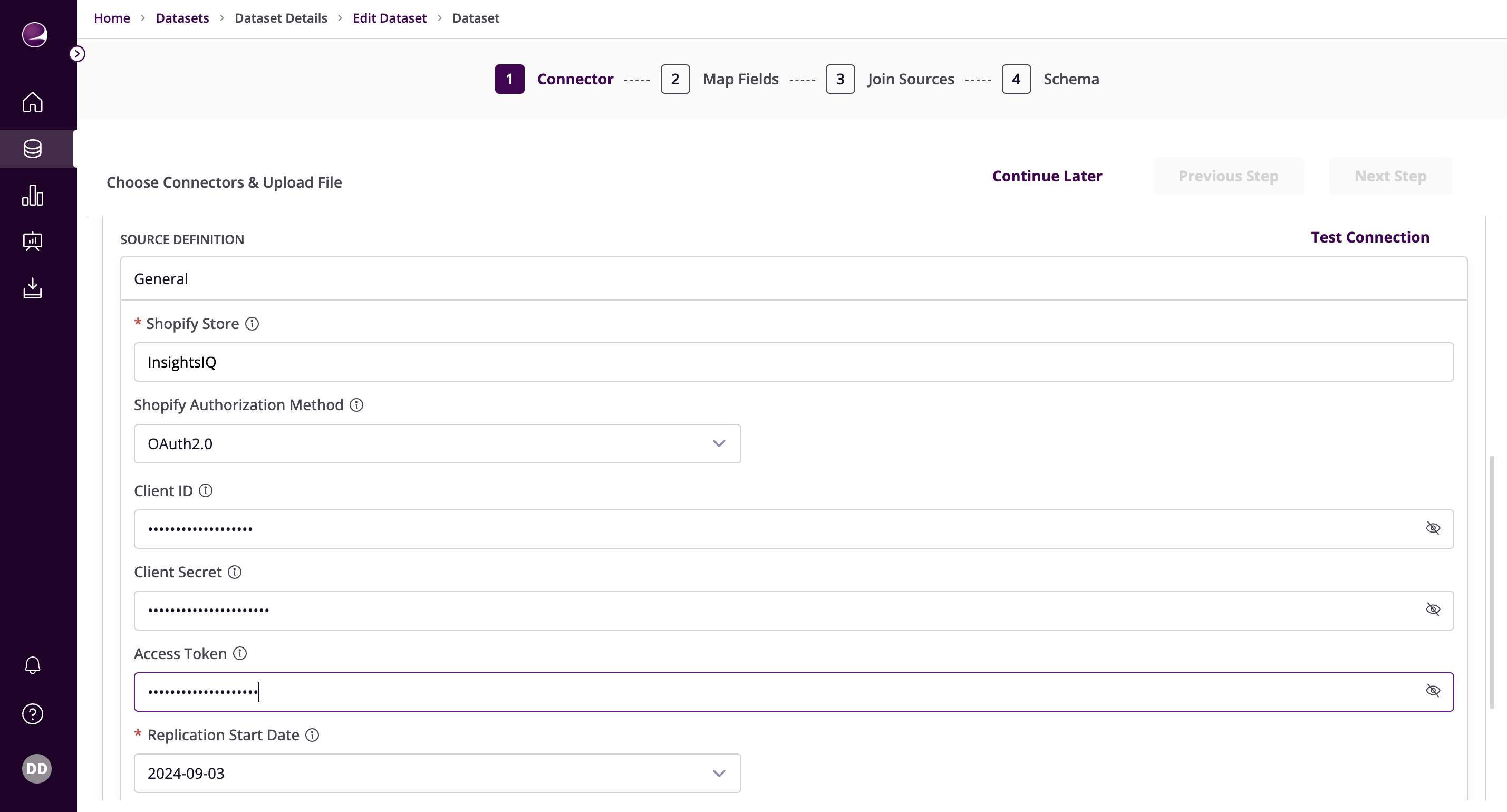
- Paste the Client ID, Client Secret, and Access Token
- API Password:
- Select the Replication Start Date (Format: YYYY-MM-DD)
- Click on Test Connection to verify if the connection is established successfully
Note: If test connection fails, verify that the app created on Shopify has all the necessary read authenticated access scopes enabled.